Explore settings
Low FPS
Use Clutcher io’s FPS display, graphics, resolution and texture settings to investigate poor performance without invented benchmark claims.
Read guide SettingsCrosshair
Compare static and dynamic crosshairs and find Clutcher io’s dot, gap, outline, color, opacity and sniper crosshair options.
Read guideChange the setting that matches the problem
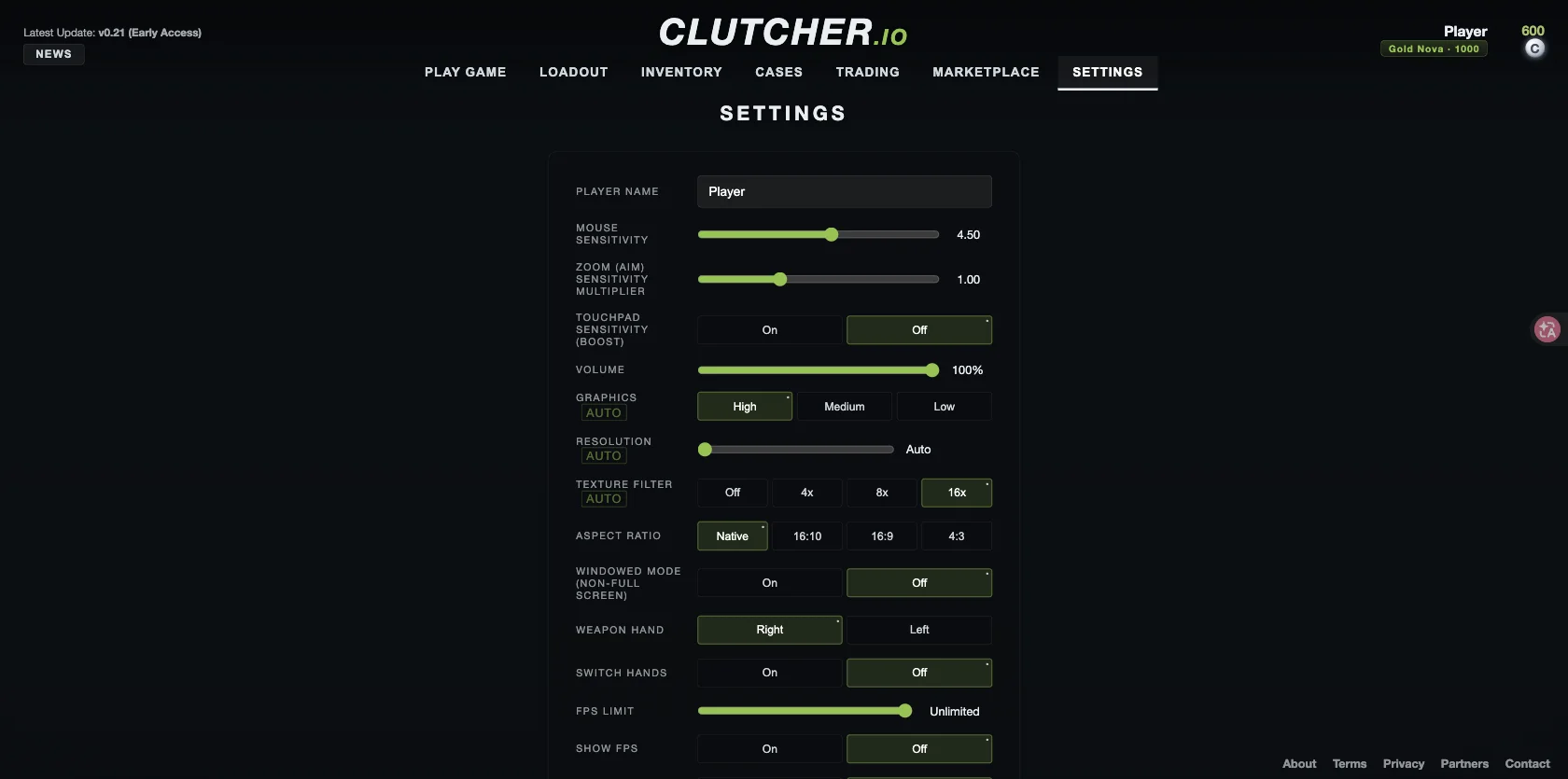
Open Settings from the main menu. For uneven performance, start with graphics and the FPS display. For a hard-to-see aiming point, use the crosshair controls. For uncomfortable mouse movement, adjust sensitivity separately from graphical quality. Changing all three at once makes it harder to know what helped.
| Area | Options observed |
|---|---|
| Graphics | Low, Medium and High |
| Resolution | Resolution control with Auto displayed |
| Texture filter | Off, 4x, 8x and 16x |
| Aspect ratio | Native, 16:10, 16:9 and 4:3 |
| Performance display | FPS limit, Show FPS and extra FPS settings |
| Mouse | Sensitivity, zoom multiplier and touchpad boost |
| Practice | Bots on/off, counts of 5, 9 or 13, and seven skill levels |
Use observed values as a reference
The checked menu showed mouse sensitivity 4.50 and zoom sensitivity multiplier 1.00. Those are values observed in one session, not universal recommendations. The same is true of High graphics, 16x filtering and an Unlimited FPS limit in that session.
Choose a sensitivity you can control on your actual device. Our suggestion is to make a small change, repeat the same turning and aiming actions, and keep the change only if it makes those actions more consistent.
Build a repeatable practice setup
The bot skill choices are V.Easy, Easy, Normal, Hard, V.Hard, Extreme and Impossible. Use a manageable setting while learning controls, then increase the challenge deliberately. Bot count changes the situation you are practicing, so record it when comparing performance.
The menu also has left/right weapon-hand settings and a separate Switch Hands toggle. A key binding alone is not enough when the corresponding feature is disabled. See the controls guide for the observed bindings.
Sources & verification
Checked on . The game is in early access; menu labels and availability can change.